
Synchronize two Android devices
Set up one primary device for entering data and an Observer device that receives synchronized records.
Before you begin
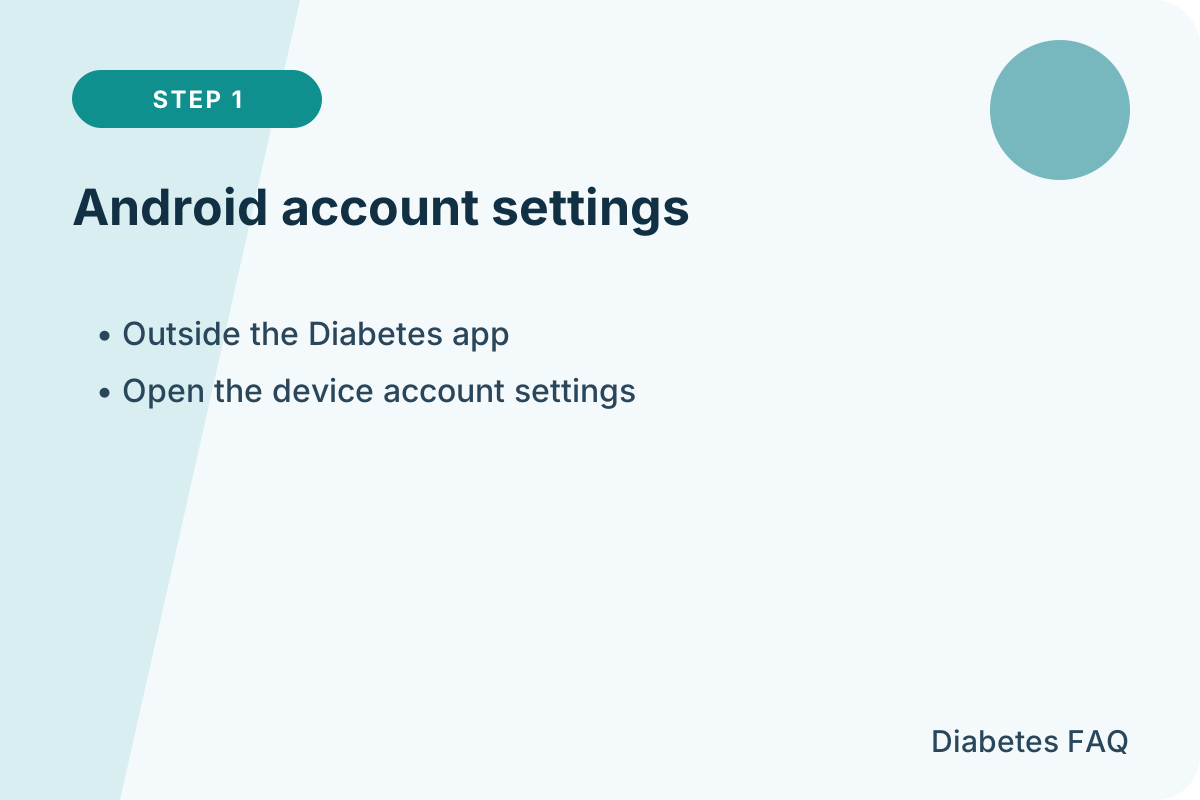
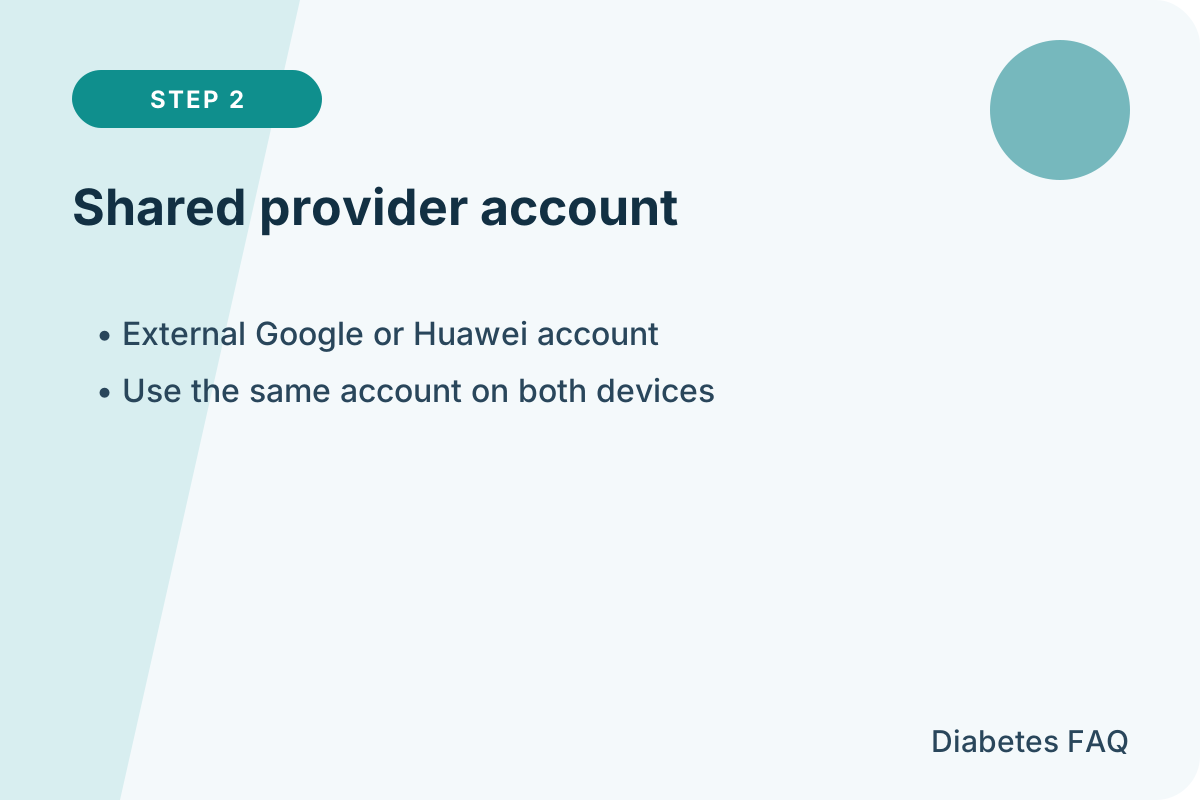
- Add one shared Google or Huawei account to both devices.
- Install the app from the same store using the same store account.
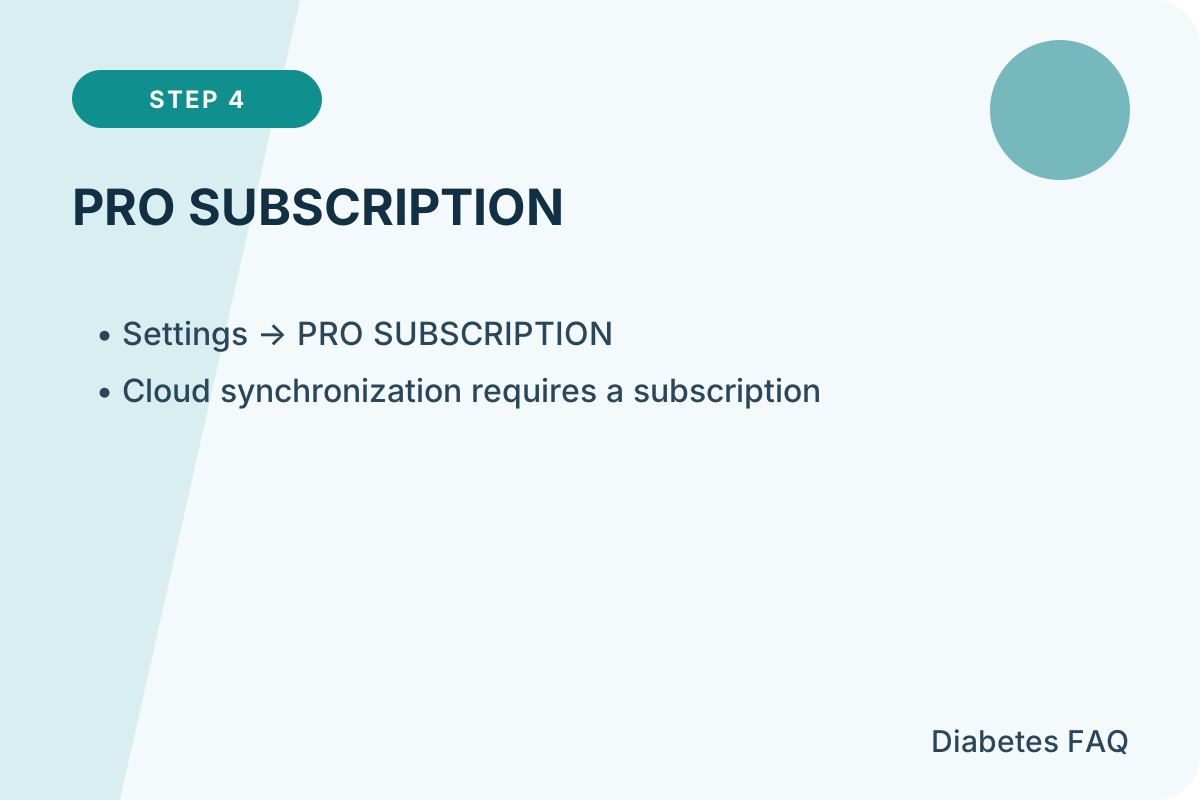
- Make sure PRO is active on both devices.
- On Huawei devices without Google Mobile Services, use AppGallery, HMS Core, and a Huawei account.
- If Family Link blocks sign-in, temporarily adjust its restrictions during setup.
1. Add the shared account
Open the device settings and confirm that the same account is available on both devices.
2. Check PRO
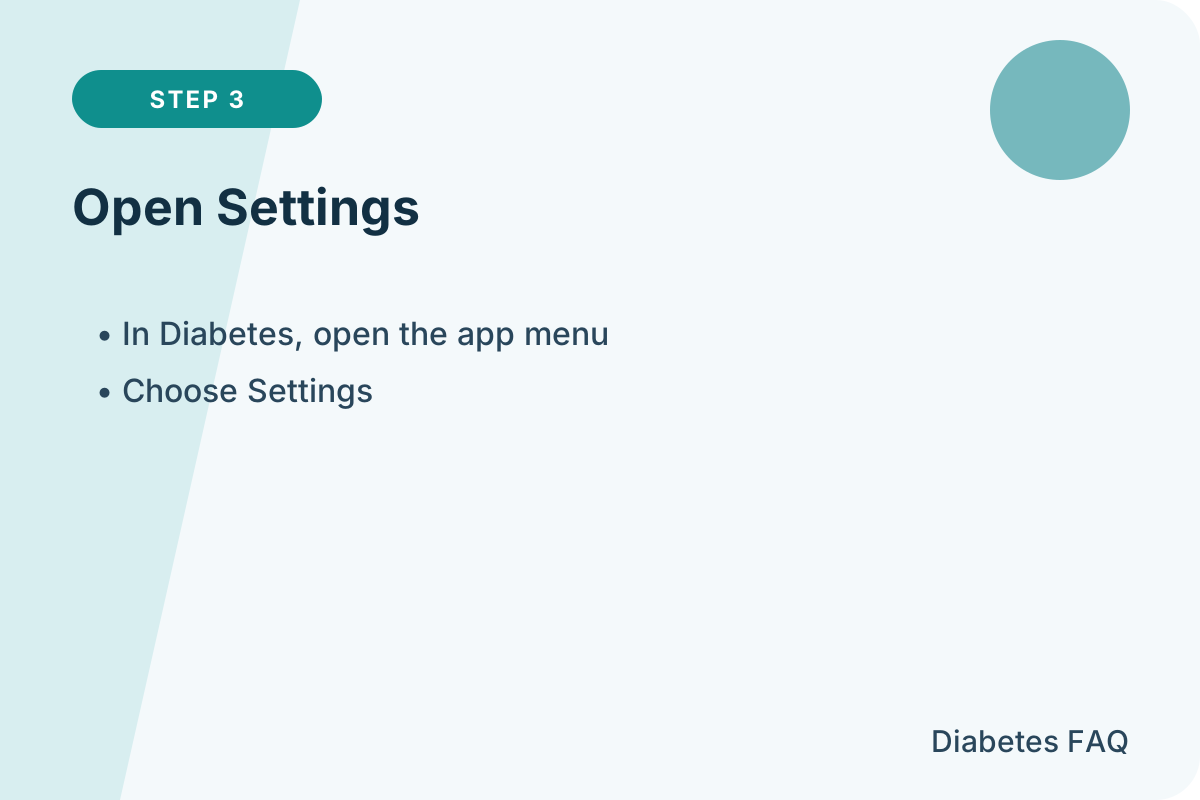
Open the app menu and confirm that the PRO subscription is active.
3. Set up the primary device
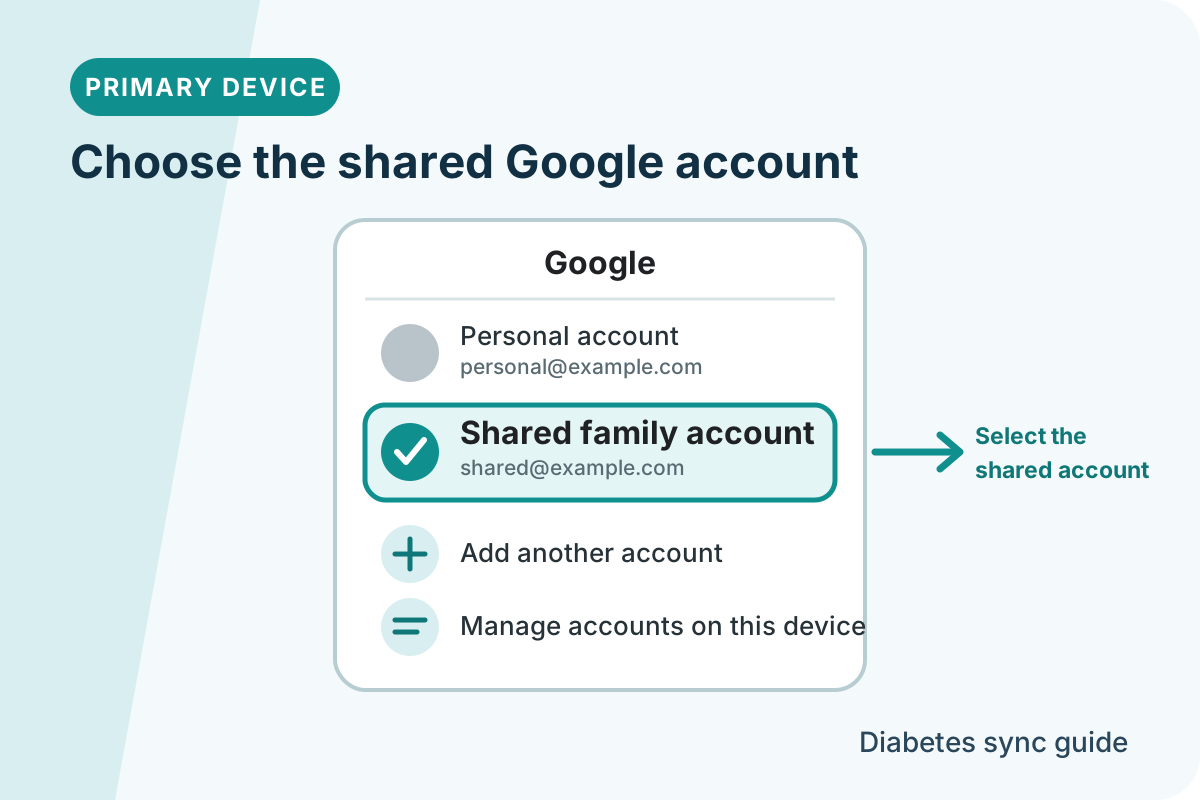
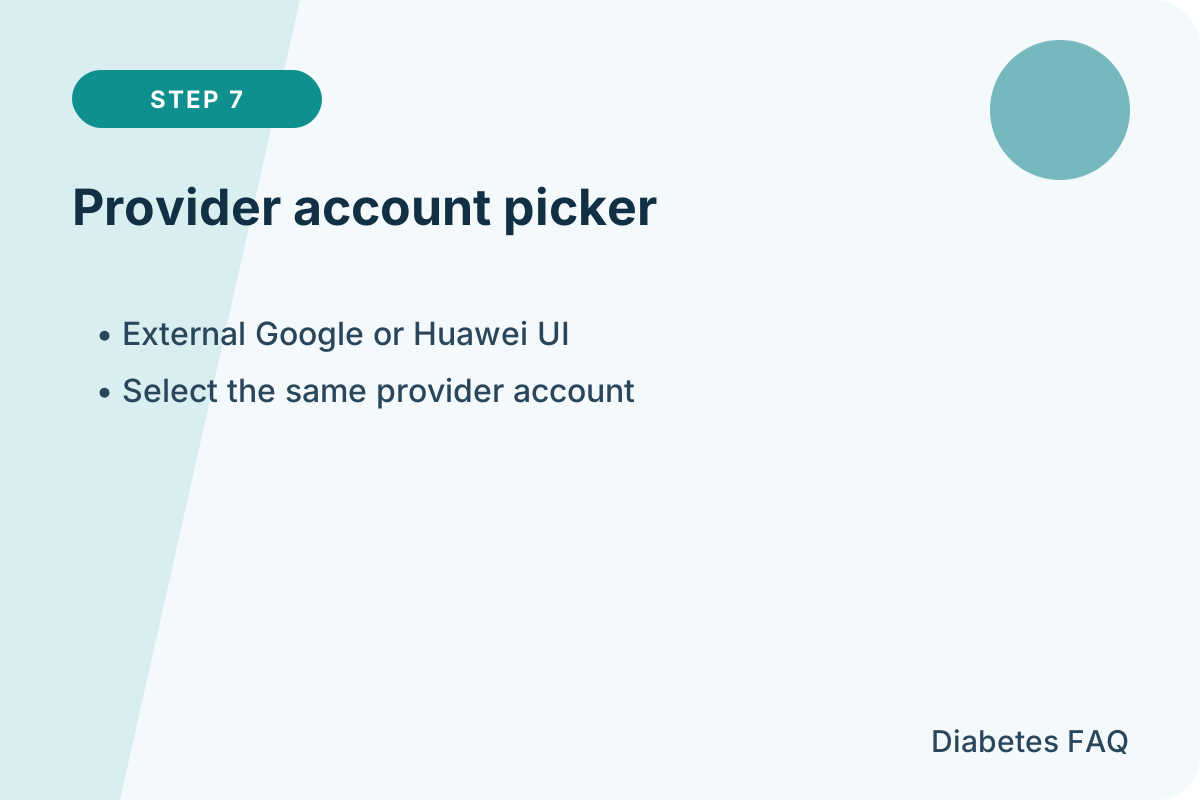
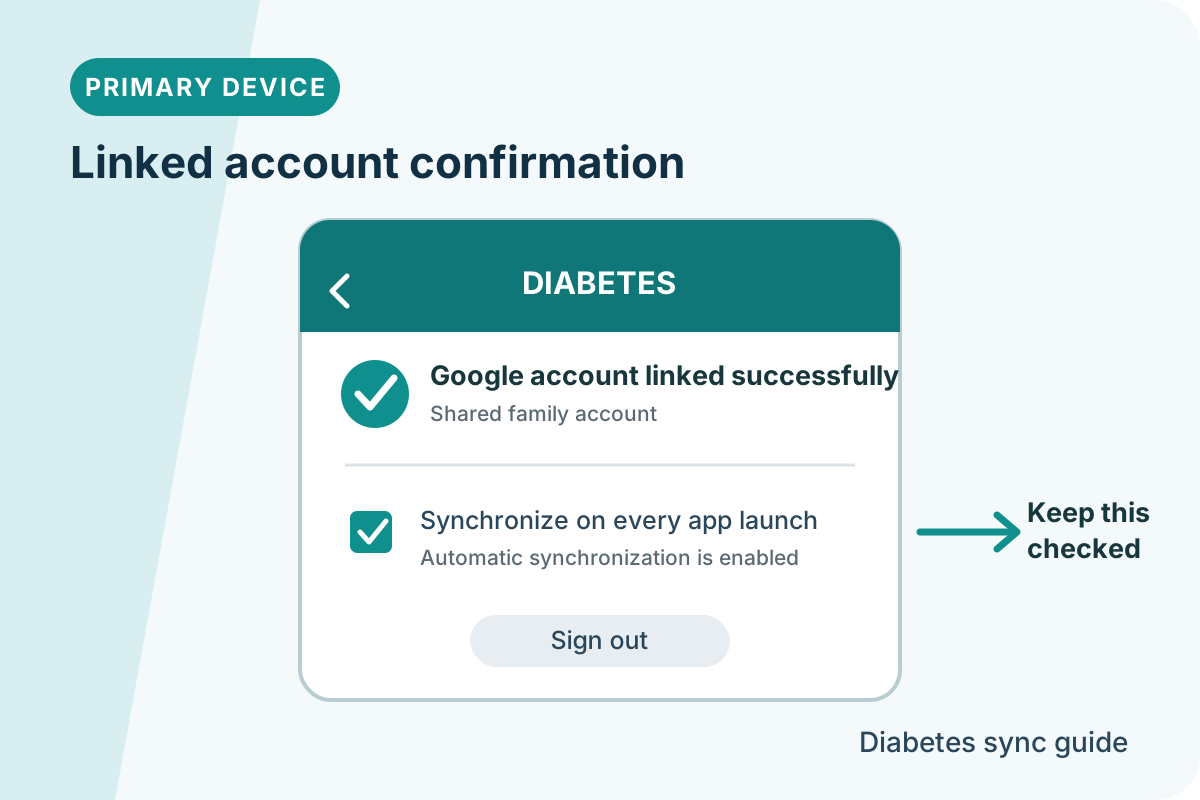
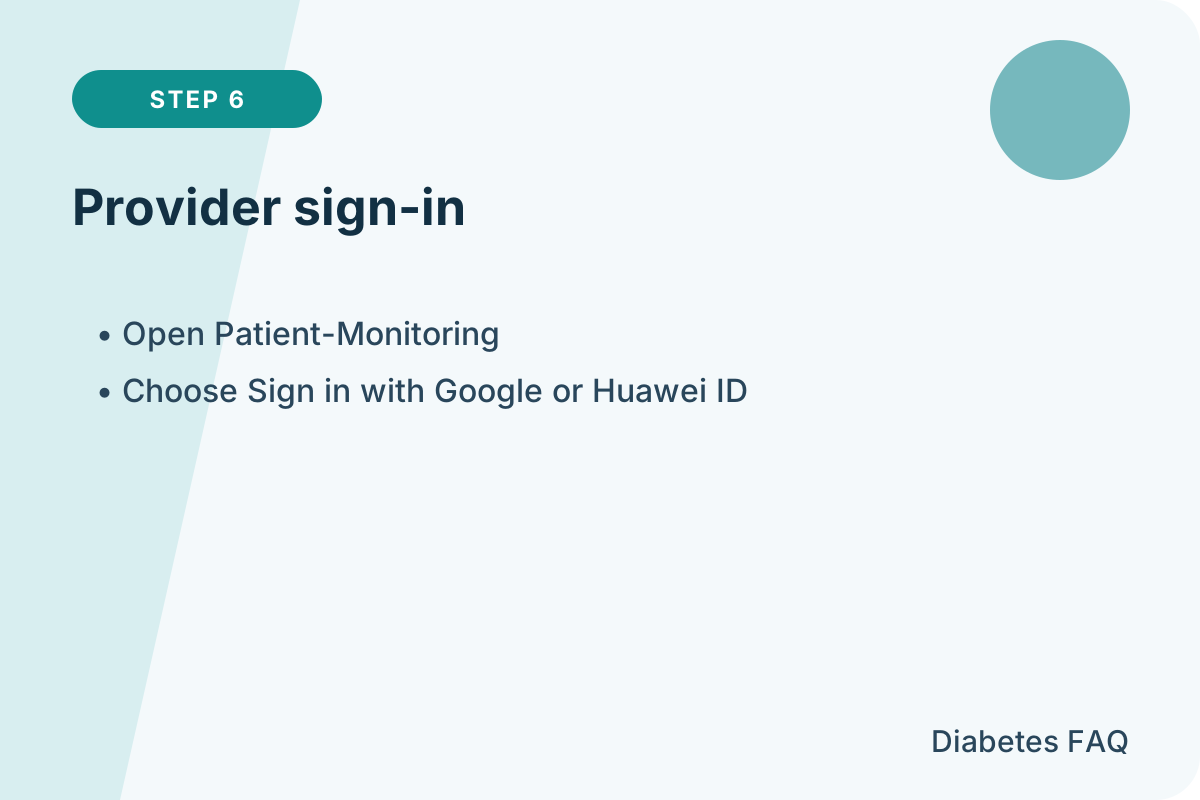
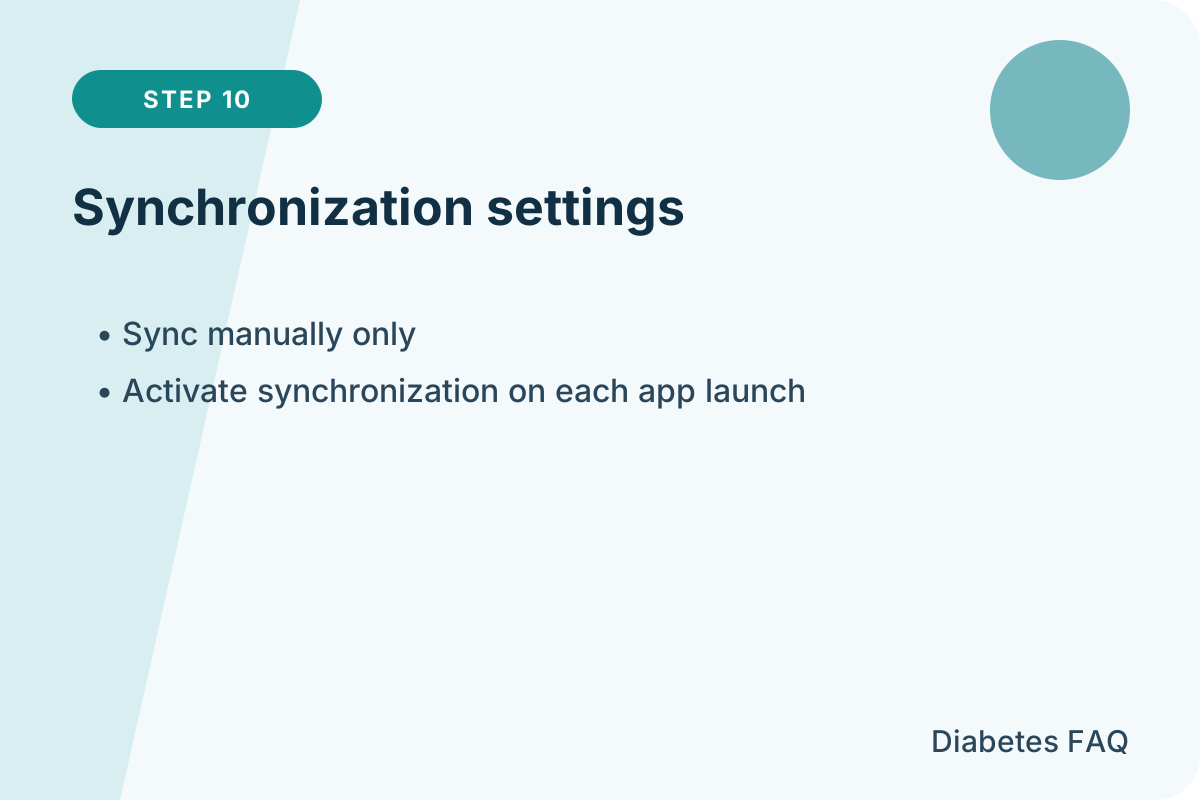
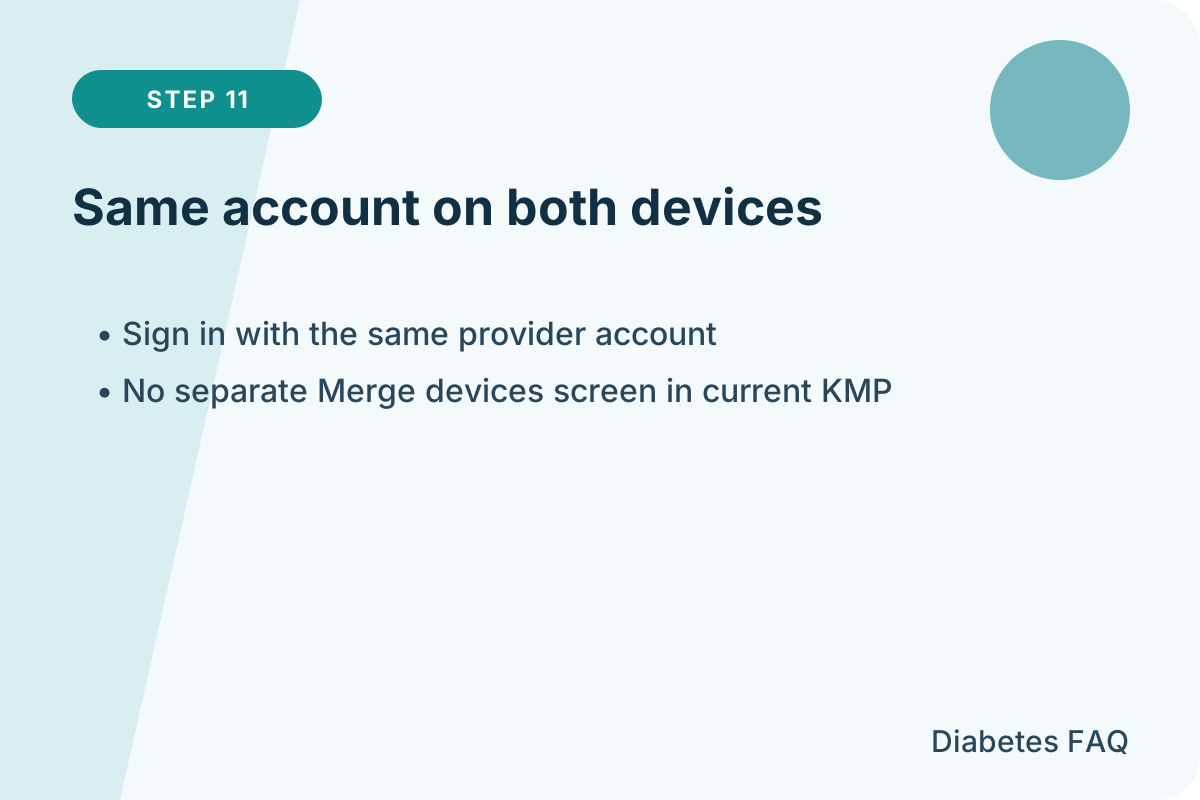
On the device used for entering data, sign in with the shared account and enable synchronization.
4. Set up the Observer device
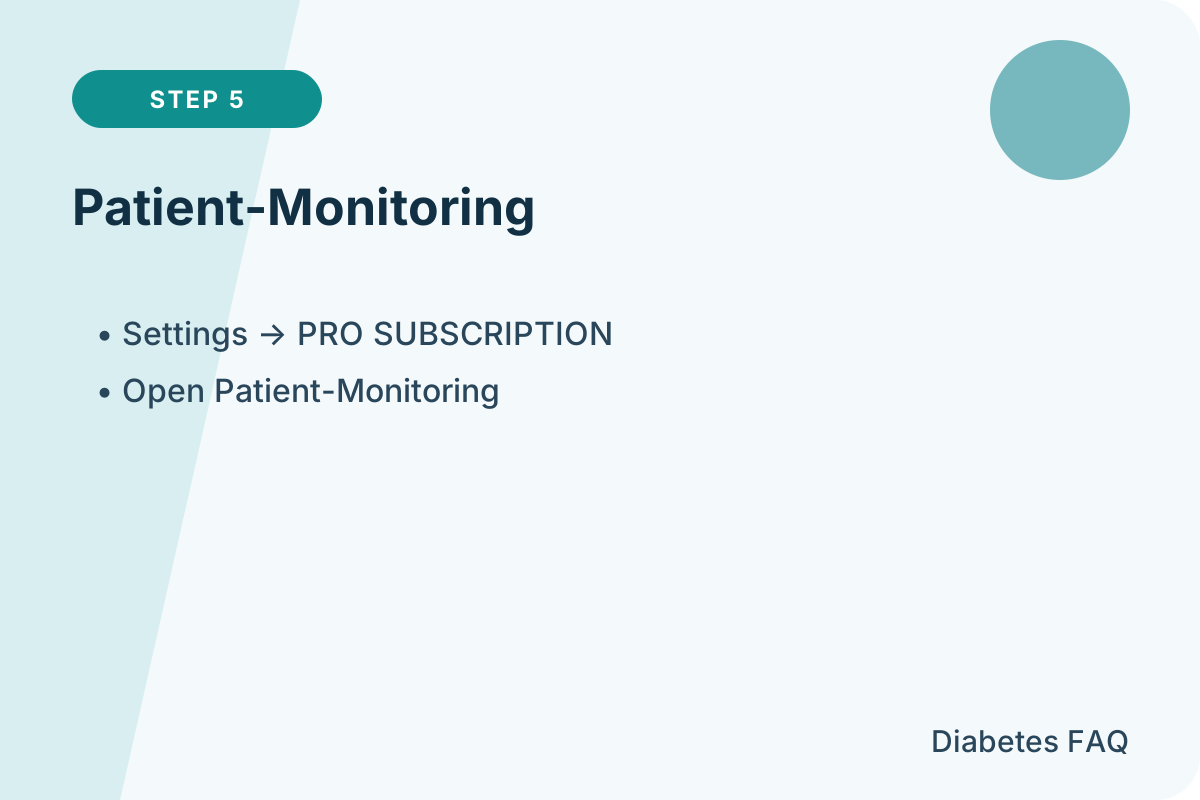
In the PRO settings, enable Patient — Observer mode, then sign in with the same account.
5. Compare the records
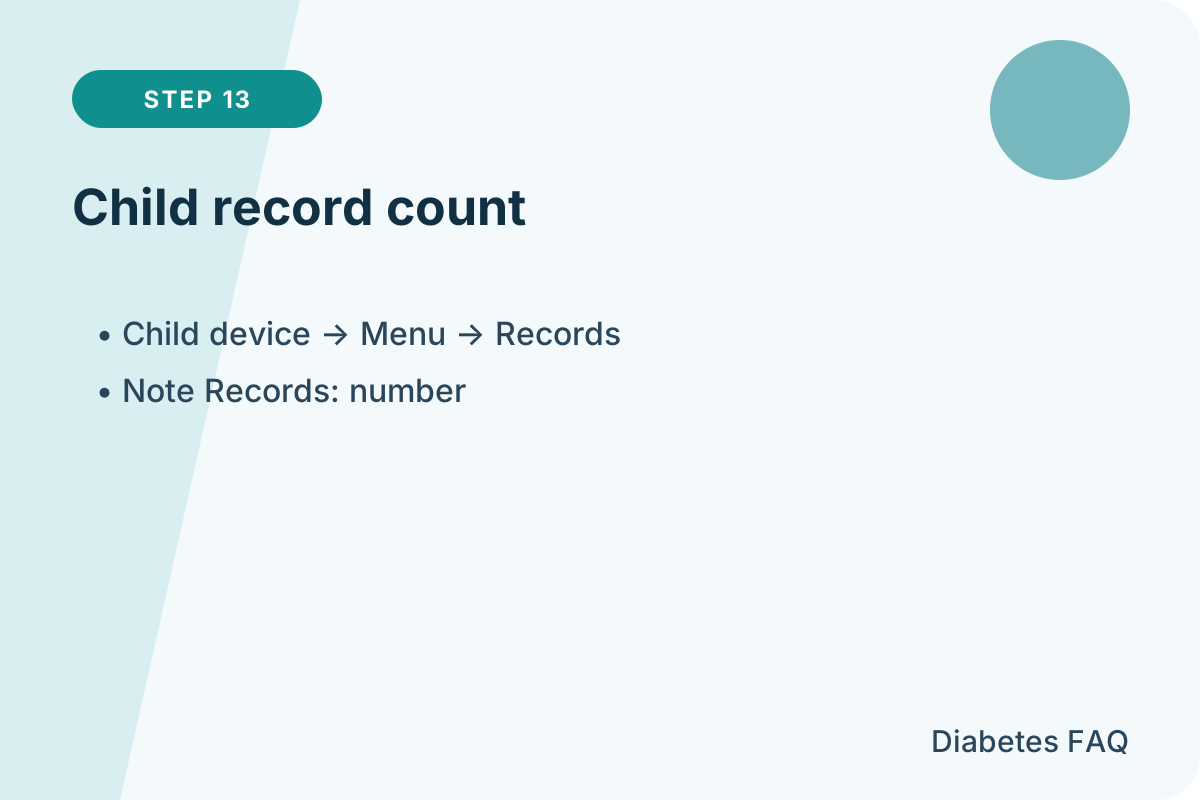
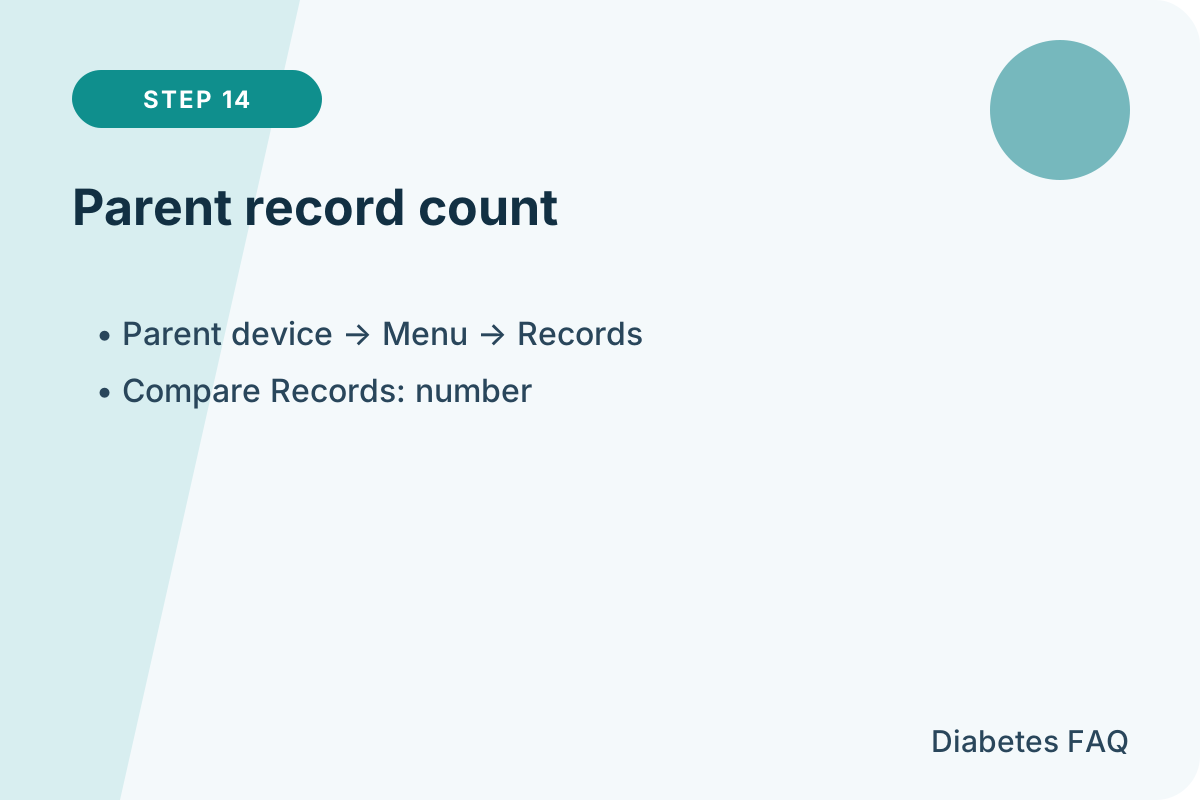
Open the record list on both devices and compare the total after synchronization completes.
If records do not appear
- Check the internet connection on both devices.
- Confirm that the app store and store account match.
- Sign in again with the shared account in the Observer settings.
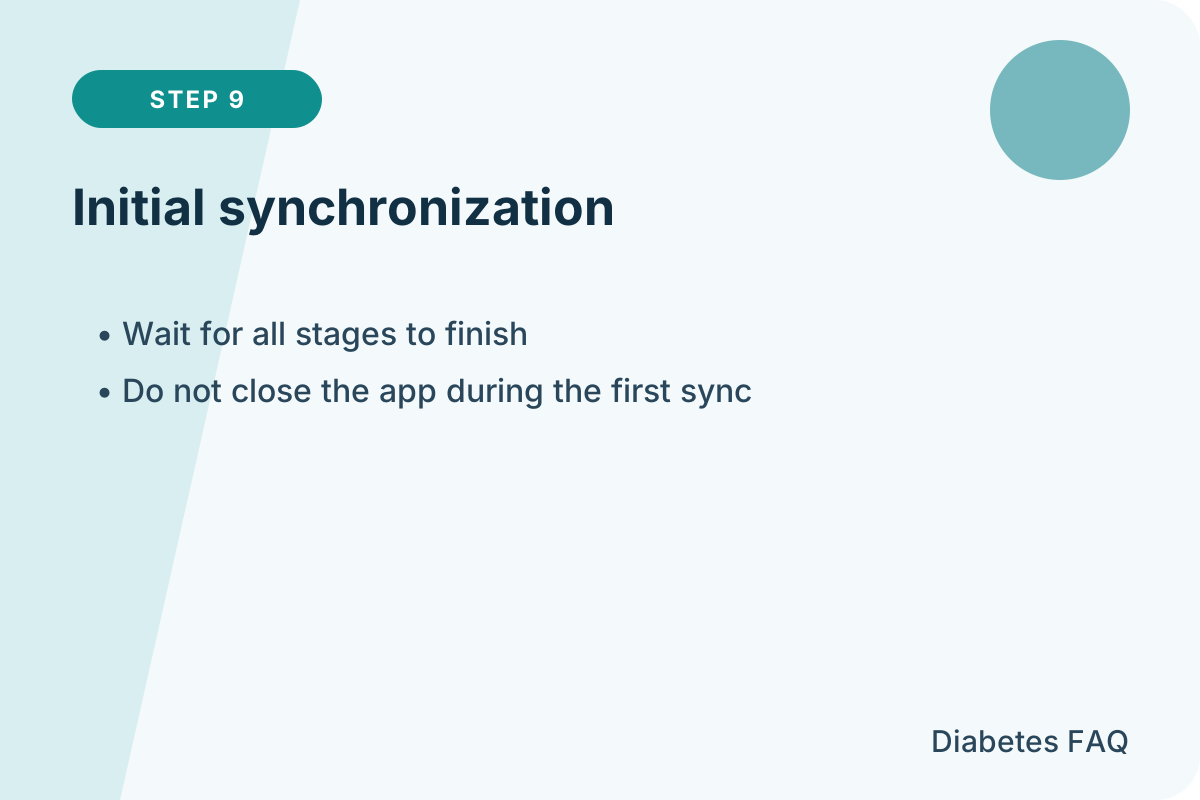
- Wait for initial synchronization to finish before comparing totals.
You are all set. The devices will now exchange records automatically.